Data input in the example pipelines
Most of the example pipelines are meant to process live data from an EEG headset (or another device) that is streamed over the lab streaming layer (LSL). So that they can be run "out of the box" without any hardware, they also contain a small branch that plays back a recorded file over LSL, as if it came from a device. This page describes this common setup, and how to adapt a pipeline to use your own live device or your own recordings. The page of each pipeline describes what is specific to it, such as the name of its LSL stream and the file that it plays back.
Changing node properties
To view or change the properties of a node, double-click the node in Pipeline Designer.
The playback branch
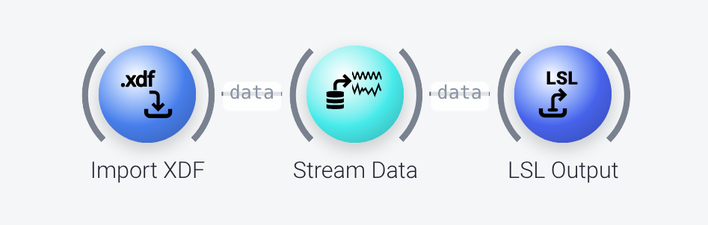
The playback branch consists of three nodes:
Import File(orImport XDF, for pipelines that read XDF files) loads a recording from disk. The file is set in itsfilenameproperty, and is one of the example data files that ship with NeuroPype (underExamples/Data; Neuropype looks in that folder automatically when the full path is not specified, which is why the filename can be specified without a path. In your usage, you would specify the full path).Stream Dataplays the recording back in real time, a few samples at a time, as if it were coming from a live device.LSL Outputsends the result out over LSL as a stream, whose name is set in itsstream_nameproperty.
The pipeline itself starts with an LSL Input node, whose query property is set to find that stream by its name (for instance name='OutStream'). The name in the query property of LSL Input must match the stream_name property of LSL Output.
Technically, the trip through LSL is not necessary, since Stream Data could be connected directly to the first processing node. It is there so that the pipeline looks exactly like it would with a live device, and only the data source needs to be exchanged. See the tutorial on streaming vs. offline data for more on playing back recorded data.
Using live data
To use a pipeline with a live device, remove the playback branch (the import node, Stream Data and LSL Output, and any parameter port that supplies the file name), and change the query property of the LSL Input node so that it finds the LSL stream of your device. Typical queries are:
type='EEG'finds a stream whose type is EEG. This is the simplest option, but if several streams of that type are on your network (including one from a playback running in another pipeline), the most recently created one is picked, which may not be the one you want.name='MyDevice'finds the stream with the given name, which is recommended if there is more than one stream.
To see which LSL streams are currently present on your network, and what their names and types are, use View LSL Streams from the Neuropype menu (right click on the NP icon in your system tray to bring up the menu), or Tools, View LSL Streams menu item in Pipeline Designer. See the documentation of the LSL Input node for the full syntax of the query property.
Using recorded data
Many pipelines can also be used on recorded (offline) data. In that case, keep the import node and set its filename property to your recording, connect it directly to the first processing node (the one that LSL Input was connected to), and drop Stream Data, LSL Output and LSL Input.
Bear in mind the following when processing recorded data:
- The whole recording is passed through the pipeline as a single chunk, instead of a few samples at a time. Nodes that only work on streaming data (often referred to as "live" or "online" data), such as
Moving Window, need to be dropped or replaced, whereas nodes that only work on recorded data (often referred to as "offline" data), such asRemove Bad Time Windows, now take effect. - Plots such as the
Time Series Plottry to show the whole recording at once, which can be slow for a large recording. It is better to drop them, or to restrict the data that they receive. - The
LSL Outputnodes at the end of a pipeline, can be used to send results to another application or another pipeline (you might have multiple pipelines running simultaneously, each of which depends on the outputs of the other). To save the results to disk, you can use aRecord to XDFnode, which works with live as well as with recorded data.
See the streaming vs. offline data tutorial for more details on the differences between the two modes. The pages of the individual pipelines list any other changes that are needed for them.